How do I let you know if the app is difficult to use? I want to help make it better!
+
We are curious to hear your opinion! You can provide feedback on the app by contacting us through this page. Scroll to the bottom, fill out the form and let us know what we can do to make the app easier to use.
Can I change the colors in the app? Some colors are hard for me to see.
+
We try to use colors that are easy for everyone to see, but your phone also has specific settings for changing the colors on your screen! You can change the colors in the app by changing your phone's accessibility settings. You can also activate the dark theme that applies an always-black background to increase the contrast on the screen. Sometimes increasing the brightness of the screen can help you see better. These options will improve visibility and the viewing experience.
Can I enlarge the buttons in the app? They are difficult to select.
+
We try to make the buttons large enough for everyone to select, but some phones also have additional settings to enlarge the buttons. You can enlarge the buttons in the app by changing your phone settings. Go to the accessibility settings and look for the option to enlarge the buttons. This will make the buttons easier to select.
Can I enlarge the words in the app?
+
You can enlarge the words in the app by changing the text size in the phone settings. The app will use the text size set on the phone, making it easier to read. Change the text size for better readability.
Can I use the app with a screen reader?
+
We are working hard to make our app work better and better with screen readers. To use the app with a screen reader, go to your phone settings and turn on the accessibility feature. The phone will read the words on the screen aloud, making it easier to read.
I forgot my login password. What can I do?
+
Open the app and click on 'log in', then on 'Forgot your password? ”. Follow the instructions that will be given to you to reset your password.
My technician sent me an invitation to register my product, but the link in the email no longer works. What should I do?
+
If the technician's invitation link has expired, you can still register the product. Just download the app and create an account. When you sign in, the app will guide you to register your product. When you are asked if you want to connect your product or if it is already connected, select “the product is already connected”, because your technician has already done so. If you prefer, you can also ask your technician to register again through their platform, so you will receive an invitation again.
I registered, but I forgot to click on the link in the email to confirm my account. What should I do?
+
If the link in the confirmation email has expired, you can simply restart the registration process. To do this, return to the app's registration page and create the account again. You will then receive a new confirmation email. Make sure to click the link promptly to verify your account.
I need to change or reset my account password. How can I do it?
+
To change or reset your password, open the app and select 'Sign In'. Then, search for and click on 'Forgotten Password'. Enter the email address you used to create your account and we'll send you an email with instructions on how to reset your password. Follow the steps in that email to create a new secure password.
Can I change the email address linked to my account?
+
Unfortunately, it's not possible to directly change the email address linked to your account. If you want to receive communications on another address, you can add a secondary email. Go to the app, open the menu, select the user profile, access the ‘change information’ section and fill in the ‘secondary email’ field.
If you need to use a new email because you're no longer using the current one, you'll need to create a new account and connect the product to this new account. Here's how to do it: 1. Disconnect the old account
- Space heating systems: for boilers with integrated connectivity or smart thermostats, select 'Reconfiguration' or 'Reset' from the connectivity menu. For accessories without a display, press' AP 'for 20 seconds.
- Water heater: for water heaters without a Wi-Fi button, enter the product menu by holding down the “Mode” button for 3 seconds and select the reset parameter from the user manual. For water heaters with a Wi-Fi button, hold down the Wi-Fi button for 10 seconds together with 'Mode', 'Power', 'ECO', 'Less', 'More', 'Auto OFF', 'Multipower' or 'Set', depending on the model.
2. Create a new account: use the correct email and confirm the account using the confirmation email.
3. Reconnect the product: After resetting the product and creating the new account, follow the steps in the app to connect the product to the new account.
How can I get in touch with customer support using the app?
+
For product support:
- Start by opening the app on your phone
- Open the menu
- Select 'Technical Support'
For Help with the app:
- Before contacting us, please review the questions in this help section. Sometimes, the answer you need is already here!
- If you can't find the answer, there's a form you can fill out to report your problem to us. We will get back to you as soon as possible!
What should I do if I changed my Wi-Fi modem, network name, or password?
+
If you change your Wi-Fi (for example, buying a new Modem or changing your network name or password), the product will no longer know how to connect to the Internet, so you'll need to reconnect your product. If you open the app, it will automatically detect that your product is offline and will suggest that you proceed with the reconfiguration. Follow all the steps to complete the operation. For more information, check the QSG included with your product. You can also find it at the top of this page. This guide contains the most important steps to quickly get your water heater online.
Can I use the app to control my water heater or home heating?
+
For most products:
- Check the box: Look at the box that your water heater or home heating system came in. If it says it works with the app, then you're good to go!
- Look for the Wi-Fi symbol: Check if there is a small Wi-Fi symbol on the control panel of your water heater or heating system. That symbol means it can connect to the app.
If your home heating system doesn't have a Wi-Fi symbol, don't worry! You might be able to add an accessory that allows it to connect to Wi-Fi. If you're not sure, ask a trusted technician. They can help you figure out if your heating system can connect to the app and what you might need.
Why use the app?
{Ariston Clima} is the intelligent app for managing thermal comfort solutions that offers simple control and timely assistance.
I am a new tenant and I want to take control of the product already in the house, what can I do?
+
In this case, the old tenant is probably still connected to the product, so if you try to do the connection procedure with your account, it is likely that it will fail. The first thing to do is to reset your current network configuration. Here's what you need to do:
Space heating systems:
In the case of boilers with integrated connectivity or smart thermostats, it is necessary to select the item 'Reconfiguration' or 'Reset' from the connectivity menu depending on the model.
In cases where you have the accessory without a display, you will need to press “AP” for 20 seconds.
Water heater:
In the case of water heaters without a Wi-Fi button, it will be necessary to access the menu by holding down the “Mode” button for 3 seconds in order to enter the product menu and select the specific “U” parameter for the reset that you can find in the user manual.
In cases where there is a Wi-Fi button, it is necessary to hold it down for 10 seconds in combination with Mode, Power, ECO, Minus button, Plus button, Auto OFF, Multipower, Set, Temperature depending on the product
After resetting the product as indicated above, you can create an account and follow the steps that the app will suggest to connect your product.
How do I change who is the main person who controls my product through the app?
+
Sometimes, you might want to change who the 'main user' of your product is on the app.
Important note: Changing the main user means that you will have to configure the product again on the app. It's like starting all over again!
How to change the main user:
- Open the app on the phone that controls the product.
- Go to the 'Profile' section and enter the 'Manage Products' section.
- In that section, you can delete the product from the main account through the bin icon. This action will disconnect the current user
- Now with the new account that you want to make the main user, you will have to log in to the app and click on 'configure new product'. - When the app asks if you want to connect the product now or if it's already connected, select “my product is already connected”
- Enter the serial number of the gateway and continue. Find the Gateway's serial number on a label on the product.
- Now with the new account you want to be the main user for, follow the app's instructions to connect your water heater to Wi-Fi.
If you want more people in your family to be able to control the water heater through the app, take a look at the question: “Can I let someone else take control of my appliance? “ This will explain how to share control without having to reset everything.
How to activate the ECO function to save energy?
+
You can activate the advanced ECO function by opening the product you want to modify on the main screen of the app, then scrolling up the curtain located at the bottom of the screen on the control panel screen and pressing the “ECO” button. The ECO function is available only in cooling mode and allows you to minimise electrical power consumption by optimising the product's operating parameters. The availability of this feature depends on whether it is supported by your product.
What are the tips for efficient use of the air conditioner?
+
Here are some useful tips for using your air conditioner efficiently:
1. First turn on the air conditioner, then close the windows: when you return home, turn on the air conditioner with the windows open for 5-10 minutes to let out any contaminants accumulated in the unit, then close the windows. This improves air quality. Ventilate the room briefly every 3 hours or so.
2. Insulate the room: Keep doors and windows closed when the air conditioner is on. Close the curtains (especially if the sun is shining) and avoid going in/out often.
3. Humidify the air: the air conditioner tends to dry the air. Place a basin of water in the room to maintain some humidity and prevent dry skin and throat.
4. Start at high speed, then reduce it: use a high fan speed at first to reach the desired temperature quickly, then switch to medium or low speed to maintain the temperature while saving energy.
5. Upward flaps (for cooling mode): cold air falls, so directing the flow upwards improves circulation and cools the room faster.
6. A temperature of 26 °C is efficient: try to keep a difference of 6-8 °C compared to the outside (e.g. if it's 33°C outside, set 26-27 °C).
7. Do not turn off for short absences: if you go out for a short time, it is more convenient to leave the air conditioner on at a moderate temperature rather than +95Sto than to turn it off and on again. Constant rekindling consumes a lot of energy.
8. Use a fan together with the air conditioner: a fan helps distribute fresh air more evenly, allowing you to set a slightly higher temperature on the air conditioner while still feeling cool.
9. Maintenance: Clean filters every 2 weeks in summer to ensure good airflow and prevent bacteria. Schedule professional cleaning (e.g. monthly or annual depending on use) to maintain efficiency.
The error “8196” appeared to me. What should I do?
+
The “8196” error usually appears when the internet (Wi-Fi) signal is weak. Try connecting to another Wi-Fi network, if you have one available. Alternatively, check your router settings. Recommended settings are: 2.4GHz network only (5GHz or mixed 2.4GHz/5GHz networks are not supported), WPA/WPA2 security, and 802.11a/b/g/n WiFi standard.
I got the 'EL/0C' error. What should I do?
+
The 'EL/0C' error indicates a problem with your air conditioner's cooling function. This is an internal product error. We suggest that you contact the manufacturer's after-sales service to receive technical support and resolve the issue.
The geolocation error appeared to me. What should I do?
+
The warning “You haven't entered a setting for when you enter the specified range” (or a similar message) appears if you have activated the Geolocation function in the app. This function allows the air conditioner to turn on/off automatically when you enter or leave a geographical area that you have set. The error probably appears because:
1) you activated the function but did not complete all the required settings, or
2) you have entered a setting that corresponds to the state in which the air conditioner is already in (for example, you set the ignition to 26°C when it is already on and set to 26°C).
Note: Since this feature requires access to your phone's location (GPS), it may consume battery faster than usual.
The 'Start configuration' button is greyed out or not clickable. How to fix it?
+
1. Restart the connection process, making sure to explicitly choose your 2.4GHz Wi-Fi network (not the 5GHz one). The products connect to 2.4GHz only.
2. Log out of the app, go to your phone's Wi-Fi settings and make sure your phone is connected to the desired 2.4GHz network. Now log back into the app and try connecting to the product again.
3. 'Forget' the other networks: Exit the app (logout), go to the Wi-Fi settings of your smartphone, select 'forget' (delete) all saved Wi-Fi networks, except the 2.4GHz network to which you want to connect the product. Go back to the app (login) and try the connection again.
The connection crashes at 66%, 85%, or 99%. How to fix it?
+
If the configuration stops at these rates, check the following:
1. Wi-Fi Frequency: Make sure that the Wi-Fi network you're connecting to is only 2.4GHz. The 5GHz frequency is not supported. Combined use (2.4GHz/5GHz on the same network) is not recommended for configuration.
2. Check that your Wi-Fi network channel is between 1 and 11. You can check this in your router settings. If the channel is not between 1-11: Change your router settings. Search online for guidance specific to your router model on how to change the Wi-Fi channel.
3. Make sure that the Wi-Fi signal where the product is located is strong. You can find channel information in the router settings. There are also apps like 'Wi-Fi Analyzer' that can help you check your network's channel and signal strength.
The app crashes towards the end (99%), but it doesn't give an error. How to fix it?
+
Sometimes, the connection may have been successful even though the progress has stopped.
1. Select 'Sign Out' (usually at the bottom right). Check if the product now appears in the list of controllable products on the app's home screen.
2. If you don't see the product right away, try dragging down the home screen to update the list.
3. Make sure that your smartphone is properly connected to your home Wi-Fi network and that your home network has Internet access.
4. As a last resort, try to uninstall the app, reinstall it from the store, and repeat the process of connecting the air conditioner.
I can't find my home network during the connection process. How to fix it?
+
Make sure to follow these steps:
1. Connect your smartphone (and configure the product) only to the 2.4GHz Wi-Fi network. 5GHz networks are currently not supported.
2. Check that your router/modem is turned on and working properly.
3. Turn your router/modem off and on again.
4. Turn off the air conditioner and wait for any 'AP' light to stop blinking
5. Retry the network setup process from the beginning.
How do I activate AP mode?
+
To configure the product the first time, it must be in Access Point (AP) mode. To activate the AP mode, you must point the remote control at the air conditioner and press the LED/Do Not Disturb/Display button seven or more consecutive times, until the word “AP” appears on the air conditioner's display.
What is the 'Geolocation' function?
+
Geolocation uses the position of your phone to know when you are leaving and returning home, then turning your product on or off for greater comfort or saving .
Here's how it works: you define an invisible circle around your house in the app, so the app knows when your phone enters or leaves that circle. When you leave, turn off the product to save if you forget to turn it off. When you get home, it lights up so you'll find the room already cool (or warm) when you arrive!
Here's how to activate it:
- Click on the product on which you want to activate the function on the main page of the app, then click on the three dots at the top right of the control panel screen
- select 'Geolocation'.
- Activate the switch at the top of the page.
- Confirm the location of your product
- Define a radius (example 1 kilometer) to define the circle around the position of the product
- Activate the switch at the bottom of the page to activate the function only when you leave home, only when you return home, or both. Things to know:
- The app only knows if you are inside or outside the circle, not exactly where you are.
- It is necessary to give consent for the location of the phone to the app.
How do I turn off my product?
+
To turn off your product, you can either do it by clicking the shutdown button on the app's main screen (the “Home” page) found in the widget of each product, or by clicking the shutdown button on the control panel screen in the center of the screen. If you have multiple products, you'll need to select the shutdown button for each product separately.
How can I activate scenes and what are they?
+
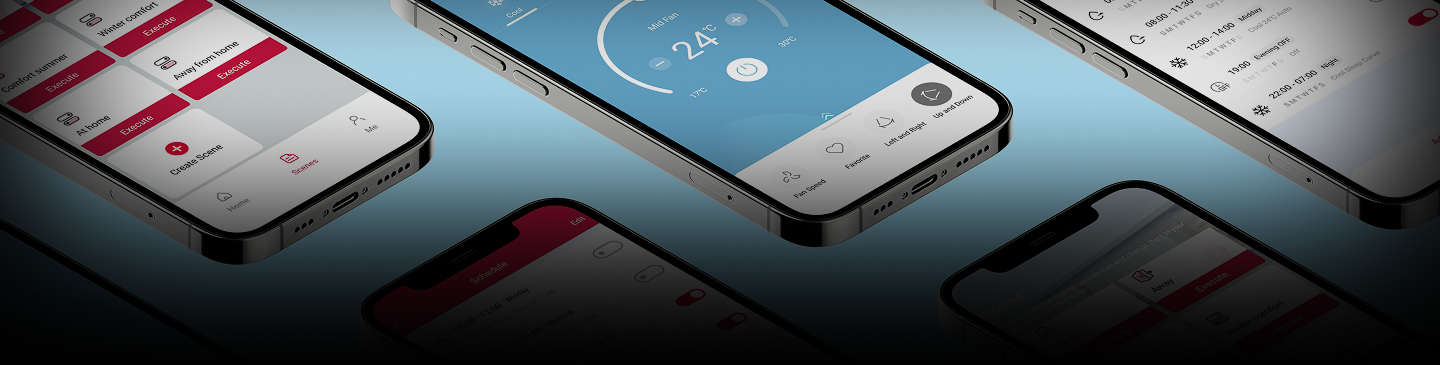
Scenes allow you to group your products and control them with a single tap by changing their default settings. You can set the scenes by opening the app, clicking on 'scene' in the appropriate button at the bottom of the screen, then clicking on 'Add scene'. Select each product you want to group and press 'next'. You can set the on or off for each product, the mode, the temperature, and the fan speed. Give a name to the scene to easily recognize what that command does, then click on 'create'. You will find all the scenes you defined on the 'scenes' screen and you can
How to adjust the fan speed from the app?
+
To adjust the fan speed of your product, you should know that there are two modes:
1. Automatic mode: the speed is automatically adjusted by the system. You can activate it by clicking on the product you want to change on the main page of the app, then clicking 'fan speed' in the curtain at the bottom of the screen, and clicking on 'AUTO'.
2. Manual mode: Adjust the speed you prefer. You can adjust it by clicking on the product you want to change on the main page of the app, then clicking “fan speed” in the bottom drop-down, and clicking and moving the scroll bar to the right or left. It is not possible to change the fan speed in Dehumidification and Automatic mode.
How do you activate the 'Sleep Curve' night function and what does it do?
+
The “Sleep Curve” night function allows you to control the temperature and fan speed during sleeping hours. To activate it, you must first set it based on your preferences by clicking on the product you want to modify on the main screen of the app, then clicking the three dots at the top right of the control panel screen, and clicking on the item “Sleep Curve”. It is possible to set the duration of the night mode by selecting and transcending the appropriate scroll bar and setting the desired temperature for each hour I select and transpose the graph. In addition, it is possible to set a fan speed for the entire duration of the function and activate the automatic shutdown of the product at the end of the duration. Once set up, you must save it using the appropriate button and you will be asked whether to activate it immediately or not. If you confirm, the function will be activated immediately up to the previously set duration. Otherwise, your settings will remain saved so that you can activate the mode whenever you prefer by scrolling up the curtain located at the bottom of the screen on the control panel screen and clicking the “Sleep Curve” button. The function is available only in cooling, heating and automatic modes.
I can't find some functions anymore
+
If you're sure that feature or mode was there before, try using the update button at the top right of the product control screen. If, on the other hand, you have never had this function, unfortunately, it means that your air conditioner model does not support it. The available smart functions depend on the type of product and are decided before the device leaves the factory.
Why are some remote control functions not present in the app
+
The functions available on the app are not always the same as the remote control. The availability of a feature on the app depends on three factors:
1. The product itself must have that function (also controllable by remote control)
2. The manufacturer must have specifically enabled that feature for app control for that specific model, before it left the factory. To learn what features your specific model supports, consult the product manual or contact customer support.
3. In some cases, functions may temporarily disappear due to incorrect information in the app's cache. If a feature you used before is no longer visible, try clicking the update button located at the top left of the product control panel screen to reload the information.
What functions can I control from the app? Is there an explanation for these functions?
+
The app generally supports the most common control functions such as: fan speed, preferred, air direction, time scheduling, ECO mode, night mode (Sleep Curve), FP (maintaining minimum anti-frost temperature).
Things to know:
The available features vary depending on your product model. To find out more, click on the product you want to modify on the main page of the app, clicking on the three dots at the top right of the control panel screen to access the section that describes in detail the functions available for your model.
How do you switch from cooling mode to dehumidification, ventilation or heating and vice versa?
+
You can change the mode such as cooling, dehumidification, ventilation, automatic and heating of your product by pressing on the product you want to modify on the main screen of the app, then pressing one of the modes at the top of the control panel screen. For the selected mode, you can also change the temperature by turning the dial clockwise or counterclockwise or by pressing the + or - button in the center of the same control panel screen, except for ventilation and automatic mode. Each tap on the + or - button will increase or decrease the temperature by 1° C.
How can I receive maintenance notifications for my heating system?
+
Currently, there is no automatic notification system dedicated specifically to periodic maintenance of your heating system.
However, your trusted technician is the best person to inform you about legally required deadlines and recommended maintenance interventions to keep your system efficient and safe over time. Did you know that these services are often combined with an extended warranty and/or maintenance contract for total peace of mind? For more information, contact an authorised center.
How can I receive maintenance notifications for my water heater?
+
Currently, there is no automatic notification system to remind you of the periodic maintenance of your water heater.
To know when you need to take action, we recommend that you:
-Consult the user manual of your water heater: here you will find specific information on recommended maintenance interventions and their frequency.
- Talk to an expert technician: a professional can evaluate the condition of your water heater and recommend the necessary interventions, such as checking and replacing the magnesium anode, an important component to prevent corrosion.
Remember that regular maintenance is crucial to ensure the efficiency, safety, and durability of your water heater.
Does the app notify me when the water heater needs to be repaired?
+
For detailed information about the maintenance to be carried out on your product, read the user manual. In addition, if the product is connected to Wi-Fi, you will receive notifications when the product encounters a blocking error, i.e. one that compromises its proper functioning. Make sure you have your notifications turned on! If the error does not compromise comfort, the app will not send you a notification, but you can notice the warning by opening the APP. Remember that it is not enough to have the notifications activated on the app, but you must also make sure that you have not blocked the notifications on your smartphone's operating system.
Does the app alert me if there are filters that need to be cleaned or replaced?
+
For detailed information about the maintenance to be carried out on your product, read the user manual. In addition, if the product is connected to Wi-Fi, you will receive notifications when the product encounters a blocking error, i.e. one that compromises its proper functioning. Make sure you have your notifications turned on! If the error does not compromise comfort, the app will not send you a notification, but you can notice the warning by opening the APP. Remember that it is not enough to have the notifications activated on the app, but you must also make sure that you have not blocked the notifications on your smartphone's operating system.
Does the app give me advice for preventive maintenance of my heating system?
+
Active Care services alert you when your system reaches levels close to a problematic state. For example, if your system pressure drops below critical levels, you may receive in-app notifications with a guided process to adjust the pressure. For more technical issues, your trusted technician will receive remote predictions and may contact you if necessary. Did you know that these services are often combined with an extended warranty and/or maintenance contract for total peace of mind? For more information, contact an authorised center.
What maintenance is typically recommended for a gas boiler?
+
The suggested checks and maintenance can help you extend the life of the product, keep its efficiency high, guaranteeing you maximum peace of mind. You can read more information in the product manual. Contact your trusted technician for more information: they can show you the advantages of a maintenance contract and/or warranty extension with the maximum security of remote assistance for your connected product.
What maintenance is typically recommended for a heat pump for heating the house?
+
The heating (and the cooling!) offered by a heat pump, it is based on a high-efficiency heat exchange thanks to refrigerant gases. It is not a simple refrigerator, but a modern and efficient system that guarantees comfort and respect for the environment, with higher efficiencies than gas. To maintain high efficiency and extend the life of your heat pump, it is important to follow the suggested maintenance. Find more details in the product manual. Contact your trusted technician for more information: they can show you the advantages of a maintenance contract and/or warranty extension with the maximum security of remote assistance for your connected product.
What maintenance is typically recommended for a water heater?
+
To ensure that you carry out all the necessary maintenance, be sure to read the manual present at the time you purchased the product. There you will find all the information about it!
I'm having trouble with my product, what can I do?
+
If your product is having problems, the best thing to do is talk to a technician. Here's how to contact them:
- Start by opening the app on your phone.
- Open the menu and look for a section called 'Technical Support' and open it.
- You will find the contact details of your trusted technician, if you have one, otherwise you will be able to find the nearest Service Partner.
What to do after replacing the router or changing the Wi-Fi network or the router password?
+
When you change your router or network, your product's previous connection settings are no longer valid.
1. You must first delete the previously connected products from the app (press and hold the product icon to delete it)
2. Perform the addition process again to connect them to the new network. This applies to all Wi-Fi products and wireless gateways (including Zigbee and Bluetooth gateways)
3. If your model supports it, you can try using the Bluetooth connection to search for and add nearby products. If the connection fails after the router is changed:
- Your router could transmit at both 2.4GHz and 5GHz. Make sure it's set to use only the 2.4GHz band.
- The router may use channels with a weak signal (e.g. channel 13). Make sure that the Wi-Fi channel is set between 1 and 11 in the router settings. Search online for how to change these settings for your router model.
The product is offline after changing Wi-Fi network, router or password. How do I reconnect it?
+
If you changed your wireless network (changed your provider, router, or simply password), your product will go offline for security reasons. To fix it, you need to reconfigure the connection:
1. Delete the product from the app: Press and hold the product icon for more than 3 seconds and confirm the deletion.
2. Reconnect the product: start the connection process again as if it were a new product.
3. During setup, select your new home Wi-Fi network when prompted and enter the correct password.
Why is my device offline?
+
First, make sure that you have updated the app by checking it in the App store or Playstore and that the product's firmware is at the latest version by checking it in the 'Me' (or 'Profile') section of the app and touching 'Firmware Update'. If both are up to date, there are various reasons why the product may be offline, but it often depends on an unstable internet connection. Please check the following points and possibly change the settings:
1. Is your home internet connection stable? Sudden interruptions in the router (e.g. due to blackouts) may cause the router to disconnect. You may need to reconnect the product.
2. If you recently changed your Wi-Fi network name or password, you must remove the product from the app and reconnect it with the new credentials.
3. The Wi-Fi module (USB stick) inserted in the air conditioner may have come loose. If accessible and possible, try turning off the air conditioner, removing and gently reinserting the module. If it's not accessible or the problem persists, contact the app's support.
4. Check if the word “AP” appears on the air conditioner display. If the product accidentally went into Access Point (AP) mode, it will be offline in the app. Turn off AP mode (see the connectivity manual).
5. Make sure that the Wi-Fi network you connect to is only 2.4GHz. The 5GHz frequency is not supported, and we also do not recommend the use of mixed networks (2.4GHz/5GHz).
How do I set up my water heater or heating system so I can tell it what to do with voice commands?
+
You can tell your product what to do without even selecting your phone! Here's how to do it:
- Download the voice control app: First, you need to download the app for the voice assistant you want to use (such as Amazon Alexa or Google Assistant).
- Create an account: Open the voice control app and create an account.
- Find the Skill/Action: in the voice control app, open the section to search for new Skills/Actions and search for Ariston Clima.
- Activate the Skill/Action: select the button to activate the Skill or Action.
- Connect the two accounts: the voice control app will ask you to log in to your account Ariston Clima.
- Choose your products: choose the water heaters or heating systems that you want to control with your voice.
- Everything is ready! Now you can use your voice to control your products!
What can I tell my voice assistant to control my water heater or heating system?
+
You can say a lot of things! Below you will find some examples
- Turn it on or off: you can say things like 'Alexa, turn on the water heater' or 'Hey Google, turn off the living room'.
- Set the temperature: you can say, for example, “Alexa, set the water temperature to 40 degrees” or “Hey Google, set the living room to 22 degrees”.
- Check the temperature: you can ask, for example, “Hey Google, what's the temperature in the living room? “
Do I need to buy a special smart home device to control my product with my voice?
+
You don't need additional devices to control your product with your voice commands. You'll need to download the app for the voice assistant you want to use (such as Amazon Alexa or Google Assistant) and you'll need to create an account on that app.
I let a voice control app (like Alexa or Google Assistant) control my water heater or heating system, but now I want to remove it. How can I do it?
+
Here's how to revoke your authorisation:
- Open the app Ariston Climaon your phone.
- Open the menu and go to the 'Profile' section.
- In the 'Profile' section, search for 'Linked apps'. This is where you'll see all the third-party apps that can control your product.
- You'll see a list of apps. Find the one you want to revoke and select the button to remove its authorisation.
How do I know if my product is compatible with voice assistants?
+
Some products can work with voice commands, but not all of them! Here's how to find out if yours can:
- Open the voice assistant app: Start by opening the app for your voice assistant (such as the Alexa app or the Google Home app).
- Start the configuration: look for the section where you add new devices or Skill/Action.
- Sign in to your product account: The voice assistant app will ask you to sign in to your Ariston Clima account.
- See if your product shows up: If your product appears in the list of things you can control, it means it works with voice control! If it doesn't appear, it's not compatible.
Why some products work and others don't: Newer products are more likely to work with voice control.
Can I use my language to tell my product what to do with voice commands?
+
It depends on the voice control app. So, if your voice control app (like Alexa or Google Assistant) can understand your language, you can use it to control your product. Check it out on their site!
I'm trying to use voice commands to control the water heater or heating system, but the voice control app can't find it. What should I do?
+
You may need to reconfigure the connection between the voice control app and the product account. When you sign in with your Ariston Clima account, make sure you choose all the products you want to control with your voice.
If you have a heating system, you may need to have 'zones' to work with voice control. Zones are like different areas of the house that you can control separately. If your heating system doesn't have zones, you won't be able to find it in the voice control app.